Getting Started
This page takes you from signing in to a protocol's Source Files.
Sign in
Open TrialMind from the link your administrator gave you and sign in with your organization account. After you sign in, TrialMind opens Home.
If your session has ended, TrialMind shows Sign-in required and a Sign in button. Select it to sign in again and return to the page you were on.
If you see Access denied, your account is not allowed to use this workspace. Ask your TrialMind administrator to grant you access.
To leave TrialMind, open your account menu and select Sign out.
Start from Home
Home greets you by name and shows your organization. It gives you:
- A resume card for your most recently updated protocol. Select it to open that protocol's Workspace.
- A New protocol button, to start a protocol from your documents.
- A link to your Portfolio, which shows how many protocols you have.
Home also shows cards for tools such as Precedents and eligibility comparison. Those tools are not available yet and are labeled Not connected.
Find your protocols
Select the Portfolio link on Home. The Portfolio lists every protocol you can access, with the most recently updated first. Select a row to open that protocol. See Portfolio for what each column shows.
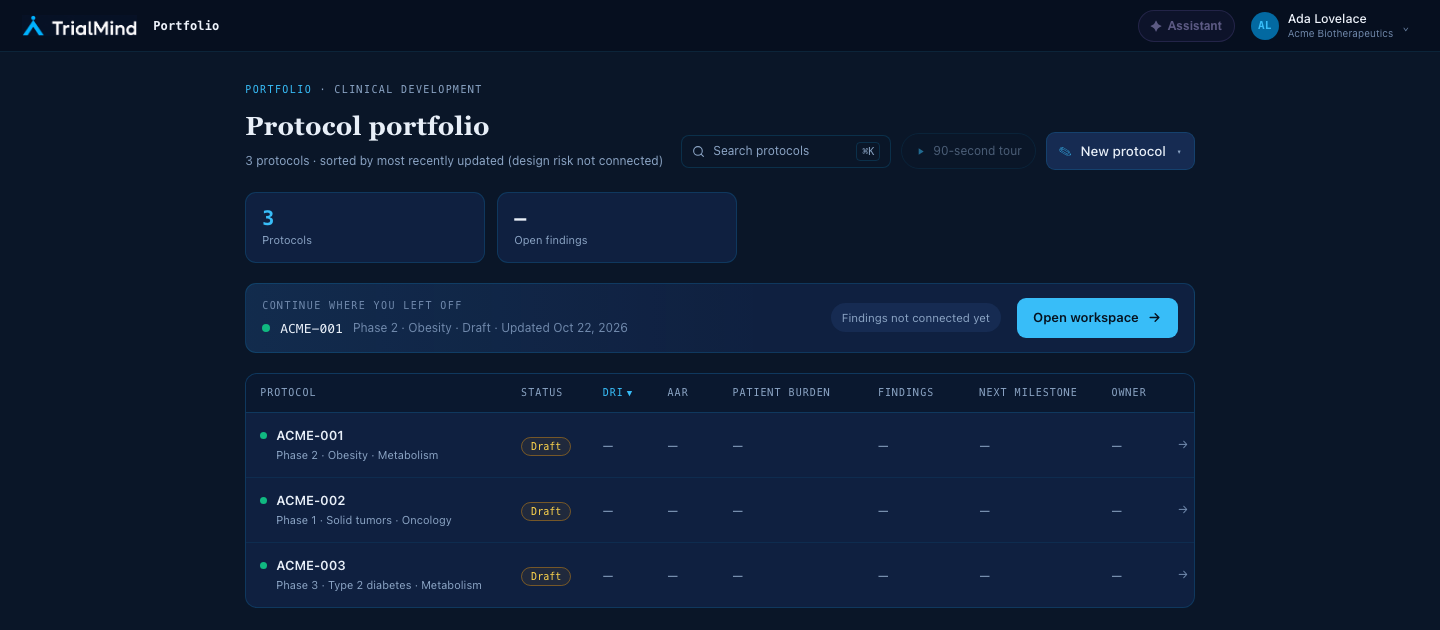
The Portfolio, shown with synthetic example protocols.
Open a protocol's Workspace
Selecting a protocol, or the resume card on Home, opens its Workspace. The Workspace opens on Overview, and the protocol you are working in is named at the top of the left navigation. See Workspace Overview for how to move around.
Find a protocol's Source Files
- In the Workspace, find Design in the left navigation.
- Select Source Files.
Source Files is where the documents and notes attached to the protocol live. See Manage Source Files to add, rename, preview, or turn off files.
Start a new protocol
This is the short version. Start a New Protocol covers each step, including what to do when something goes wrong.
-
Select New protocol on Home, in the Portfolio, or in the Workspace navigation, then choose Start a new protocol.
Note
The other choice, Upload existing protocol, is not available yet. TrialMind tells you so when you select it.
-
Select between one and 20 supporting documents (up to 50 MB each).
Supported formats are PDF, DOCX, PPTX, XLSX, CSV, TXT, and MD. Older Microsoft Office formats are not supported; save them in a current format first.
-
Select Continue. TrialMind uploads the documents, then reads them while you wait. This can take a while, and it can fail. If it does, you can still enter the details yourself.
- Review the protocol details in Extraction and Review. Only information your documents support is filled in, and information they do not state is left blank. A short title is the only required field. Check each value against your documents.
- On the Team step, which lists you as the owner, select Create protocol ↗. TrialMind saves a draft linked to your documents and opens its Workspace.