Start a New Protocol
The New Protocol wizard creates a protocol from the documents your team already has: concept decks, rationale memos, decision logs, preclinical packages. You attach the documents, TrialMind reads them, you review what it found, and TrialMind saves a draft protocol.
The wizard has four steps, shown across the top: Files, Extract, Details, and Team. The footer shows where you are, for example "Step 2 of 4 · Extract".
Before you start
- Have between one and 20 supporting documents ready. Each file can be up to 50 MB.
- Use PDF, DOCX, PPTX, XLSX, CSV, TXT, or MD files. See Supported Files and Limits.
- You do not need to know the protocol details in advance. Only a short title is required, and you can enter it yourself.
Open the wizard
- Select New protocol on Home, in the Portfolio, or at the top of the Workspace navigation.
- Choose Start a new protocol.
The other choice, Upload existing protocol, is not available yet. TrialMind tells you so and nothing happens.
The wizard opens on its own. No protocol exists until you create one in the last step.
Step 1: Files
- Drag your documents onto the drop area, or select it to browse.
- For each file, review the document type. TrialMind suggests one from the file name, and you can change it. The choices are Development concept, Program decision log, Design workshop notes, Scientific rationale, Preclinical evidence, and Other supporting evidence.
- To take a file out of the list, select the ✕ next to it.
- Select Continue →.
The drop area shows how many files you selected and the limits: up to 50 MB per file and up to 20 files.
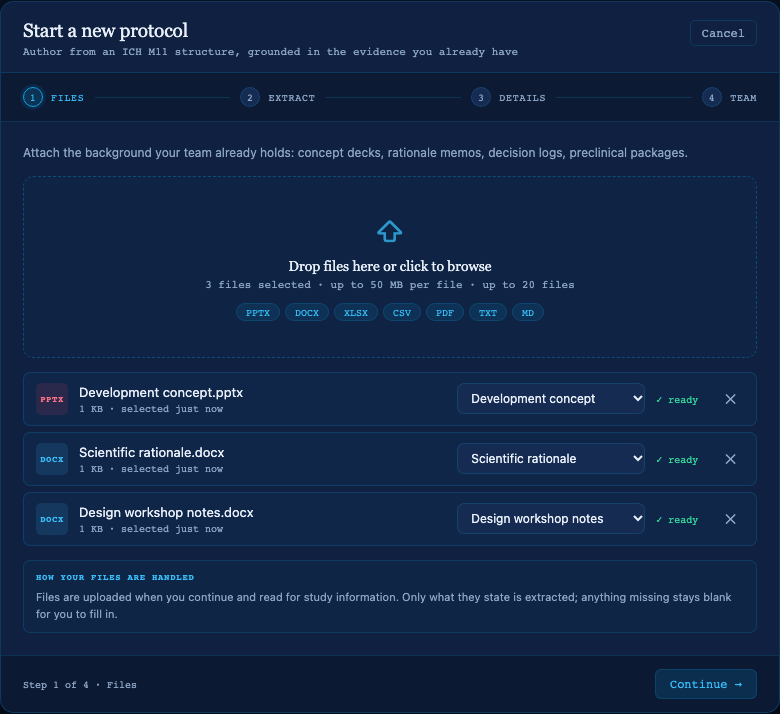
The Files step with three synthetic example documents selected.
Files upload when you select Continue
Selecting files does not upload them. TrialMind uploads them one at a time when you select Continue, and the footer reads "Uploading files…". Each row shows its progress, then uploaded.
You can only continue once at least one file is selected. Selecting the same file twice adds it once. Files over 50 MB are not added, and TrialMind tells you how many were skipped. If you select more files than the limit allows, the extra files are not added.
Supported file types
| Supported | Not supported |
|---|---|
| PDF, DOCX, PPTX, XLSX, CSV, TXT, MD | Older Office formats (DOC, PPT, XLS), images, and ZIP archives |
If a file is not accepted, its row shows failed with the reason from TrialMind. Save older Office files in a current format first. See Troubleshooting for common reasons.
If an upload fails
TrialMind does not continue to Extract until every selected file is uploaded. A message says how many files were not uploaded.
- Remove a failed file with ✕ and continue without it, or
- Select Continue again to retry the failed files.
A file that uploaded successfully is not sent again when you retry. Once a file is uploaded, its document type can no longer be changed.
Step 2: Extract
After the upload, TrialMind starts reading your documents. This is the Extract step. It shows six rows that follow the real progress of the work:
- Preparing source documents
- Reading and normalizing documents
- Extracting study information
- Consolidating evidence
- Saving extraction results
- Finalizing processing
Each row shows what has been completed, for example how many documents are readable. A row waiting for an earlier stage shows Queued.
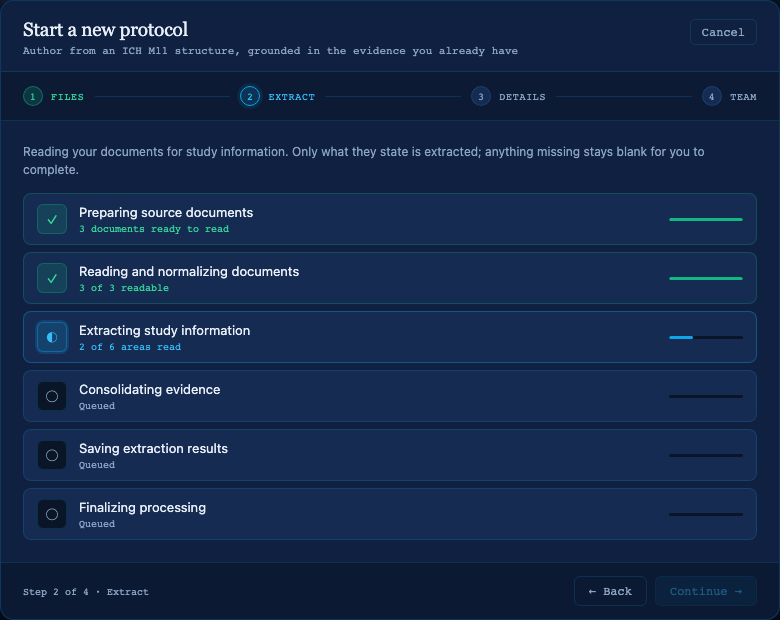
Extraction in progress. Continue becomes available when extraction finishes or fails.
This takes as long as the work takes. It is not instant, and it is not guaranteed to succeed. Continue stays disabled while extraction runs.
If some of your documents cannot be used, for example because they have no readable text, the step names them and carries on with the rest.
When extraction finishes
The step says "Extraction finished" and Continue becomes available. Details comes next.
When extraction fails
If extraction does not complete, the step shows where it stopped and why, and says that your documents are saved. Continue is available anyway. You can:
- Continue to Details and enter the information yourself. Creating the protocol still requires the draft to be saved successfully.
- Select ← Back and then Continue again to retry extraction.
You can also select ← Back while extraction is running. The work continues on the server. When you return to Extract with the same files, TrialMind follows the run in progress instead of starting another.
If you add files after going back, wait until extraction finishes first. TrialMind tells you "Extraction is still running. Wait for it to finish before adding files."
Step 3: Details
Details shows the protocol's identifying information, prefilled from your documents where they state it. See Extraction and Review for how to read, correct, and verify these values. Select Continue → to save your corrections and move to Team.
Step 4: Team
The Team step lists you as the protocol's Owner. Adding other team members is not available yet. This is the last step, so its button reads Create protocol ↗.
Create the protocol
Select Create protocol ↗. The button changes to Creating…. TrialMind saves one draft protocol linked to your documents and the evidence extracted from them. When the server confirms it, TrialMind opens the new protocol's Workspace.
The protocol appears in the Portfolio with the status Draft. Its uploaded documents are in the Workspace under Source Files. See Find a protocol's Source Files.
If creation fails, the wizard stays open and shows a message. Select Create protocol ↗ again. A retry cannot create a second protocol. If the protocol was created but could not be opened, TrialMind says so and opens the Portfolio, where you can open it.
Cancel the wizard
Select Cancel at the top right to close the wizard. If you opened it from Home or the Portfolio, TrialMind returns you there. The choices you made in the wizard are discarded.
Cancelling does not create a protocol. It also does not delete documents that were already uploaded in that session. If that matters for confidential material, ask your TrialMind administrator.
Troubleshooting
| What you see | What to do |
|---|---|
| Continue is disabled on Files | Select at least one file. |
| A row shows failed | Read the reason on the row. Remove the file, convert it to a supported format, or retry with Continue. |
| "File is over 50 MB and not added" | Split or compress the document and add it again. |
| "You can add up to 20 files" | Remove files you do not need, or create the protocol with fewer documents. You can attach more later in Source Files. |
| Continue is disabled on Extract | Extraction is still running. Wait for it to finish. |
| Extraction failed | Continue and enter the details yourself, or go back and continue again to retry. |
| Continue is disabled on Details | Enter a short title. |
| Creation failed | Select Create protocol ↗ again. |