Portfolio
The Portfolio lists the protocols you can access in your organization. Use it to see what exists, check a protocol's status, and open a protocol's Workspace.
Open the Portfolio
Select the Portfolio link on Home. The page shows the number of protocols and how the list is currently sorted, for example "3 protocols".
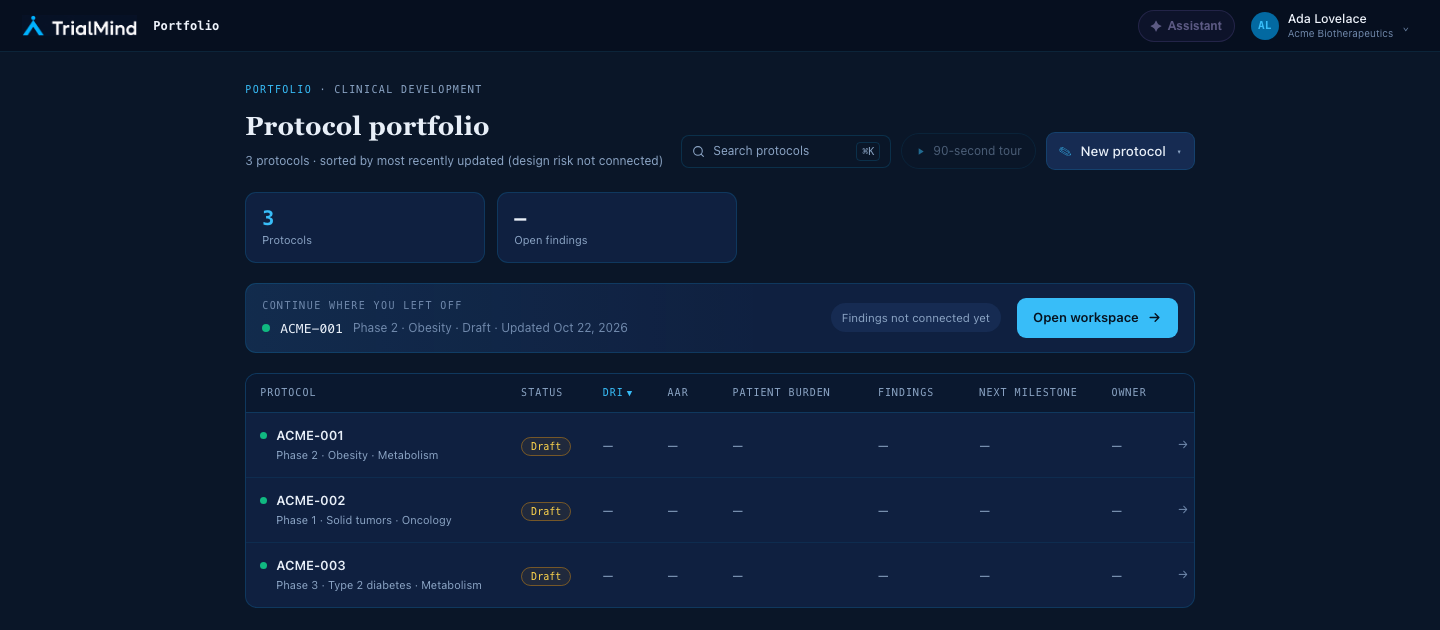
The Portfolio, shown with synthetic example protocols.
At the top, a Protocols count shows how many protocols you have, and a resume card links to your most recently updated protocol. The resume card shows its phase, indication, status, and last update date, when TrialMind has them.
Read the protocol list
Each row is one protocol.
| Column | What it shows |
|---|---|
| Protocol | The protocol code, or its title if it has no code, with a line below it showing phase, indication, and therapeutic area when known. |
| Status | The protocol's status, for example Draft. A protocol you create with the New Protocol wizard starts as a draft. |
A phase, indication, or therapeutic area that was never entered is left out of the line below the protocol name.
Columns that are not available yet
The table also has DRI, AAR, Patient burden, Findings, Next milestone, and Owner columns. They show a dash (—) because TrialMind does not provide that information yet. A dash does not mean zero findings or low risk. The same applies to Open findings at the top of the page.
Sort the list
By default the Portfolio lists the most recently updated protocol first.
Select the Protocol column heading to sort by protocol name from A to Z. Select it again to reverse the order.
The other column headings can be selected, but they keep the most recently updated order because the information they would sort by is not available yet.
Open a protocol
Select a row, or focus a row and press Enter, to open that protocol's Workspace. See Workspace Overview for what to do next.
Start a new protocol
Select New protocol, then Start a new protocol. See Start a New Protocol for the steps. When you create the protocol, it appears in the Portfolio as a draft.
If the Portfolio is empty
A new organization shows No protocols yet. Start a protocol to add the first one.
What is not available yet
- Search protocols. The search box is visible, but selecting it only shows a message that search is not connected yet.
- Risk and burden measures and findings counts, as described above.
- The guided tour link, which is shown disabled.