Manage Source Files
Source Files is a protocol's evidence library: the documents and notes TrialMind holds for that protocol. Use it to see what is attached, add more material, choose what TrialMind may use as AI context, and open or download the originals.
To open it, select a protocol, then Design > Source Files in the Workspace navigation. See Find a protocol's Source Files.
What Source Files shows
Source Files lists everything attached to the protocol.
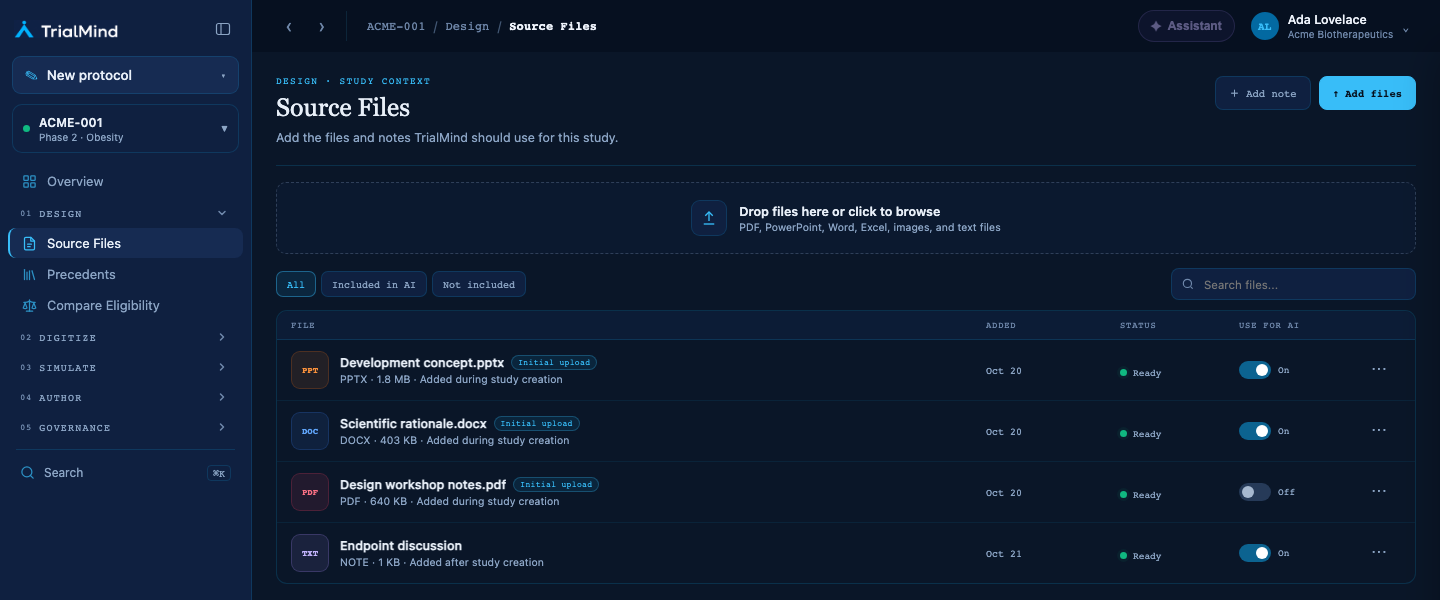
Source Files, shown with synthetic example documents and a note.
Each row shows:
| Column | What it shows |
|---|---|
| File | The file or note name, its type, its size, and where it came from: Added during study creation or Added after study creation. Documents uploaded in the New Protocol wizard also carry an Initial upload label. |
| Added | Today, Yesterday, or the date. |
| Status | Ready, Processing, or Issue. See Status. |
| Use for AI | A switch showing whether the file is included as AI context. |
TrialMind shows only what it knows about a file. It does not show page counts, authors, or analysis results.
If the protocol has no files, Source Files says No source files yet.
Find a file
- Use the All, Included in AI, and Not included buttons to filter the list.
- Type in Search files... to find a file by name or by type, such as PDF.
If nothing matches, the list says No matching files.
Status
| Status | Meaning |
|---|---|
| Ready | The file is stored and available. |
| Processing | The file is still being added. Wait for it to finish. |
| Issue | The file could not be added or stored. In the preview panel the status reads Needs review. |
Add files
- Select ↑ Add files, or drag files onto the drop area.
- TrialMind uploads them one at a time. Each row shows its progress as "Uploading 42%".
- When all uploads finish, a message summarizes the result, for example "2 files added".
Supported types are PDF, DOCX, PPTX, XLSX, CSV, TXT, and MD, up to 50 MB per file. A protocol holds at most 50 files and 200 notes.
The drop area also mentions images
The drop area text lists images, but images are not supported. TrialMind refuses an image and shows the reason on its row. See supported file types.
Duplicates
If you add a file whose contents are already in Source Files, TrialMind does not add a second copy. The summary says it is already in Source Files. A file with the same contents is recognized even if you rename it before uploading. If you previously removed that file, adding it again restores it.
If an upload fails
A file that could not be added stays in the list as an Issue row with the reason, for example that the file is larger than 50 MB or its type is not supported. The file was not added to the protocol.
- Read the reason on the row.
- Open the row's ··· menu and select Remove to clear the row.
- Fix the problem, for example by converting an older Office file to a current format, and add the file again.
If the whole upload cannot start, for example because your session has ended or the connection dropped, TrialMind tells you. Sign in again or check your connection and try again.
Adding a file does not start extraction
Files you add after the protocol is created are stored and can be used as AI context. They do not start a new extraction, so they do not fill in or change the protocol's details.
Add a note
Use a note to record something that is not in a document, such as an endpoint discussion.
- Select + Add note.
- Enter a Note title and write the Note. Both are required.
- Leave Use this note for AI context on, or turn it off.
- Select Save note.
If the note cannot be saved, the dialog stays open with your text. A note can be up to 200 characters in the title and 50,000 characters in the body.
Use a file for AI
The Use for AI switch controls whether a file or note is included in the AI context TrialMind uses for this protocol. Included in AI means it is included. Turn it off to exclude the file or note from that context.
Turning the switch off does not delete the file or note. It also does not undo anything that was already done with it: values extracted earlier and details you saved stay as they are. It changes what is included from then on.
- Select the switch in the Use for AI column, or select Use for AI in the file's preview panel.
- TrialMind confirms with "Included in AI context" or "Removed from AI context".
The change shows only after TrialMind confirms it.
Rename a file
- Open the row's ··· menu and select Rename.
- Enter a new name and confirm.
Rename changes the name shown in Source Files. It does not change the name of the file you uploaded, and downloading the file returns the original. Names can be up to 255 characters.
Preview a file
Select a row, or choose Preview from the ··· menu, to open its preview panel on the right. The panel shows the file's details, its Use for AI setting, and its status.
| File | What the preview shows |
|---|---|
| The document, inline. | |
| Notes, TXT, MD, CSV | The text. Long text (over about 256 KB) is shortened with a message to download the original. |
| Word, PowerPoint, Excel | No preview. The panel says the file type cannot be previewed here, and you can download the original. |
If a preview cannot be loaded, the panel says so and you can still download the file.
Download a file
Open the preview panel and select Download. TrialMind downloads the original file you uploaded.
Remove a file or note
- Open the row's ··· menu and select Remove.
- Confirm.
TrialMind removes the file or note from the list. It confirms with "File removed" or "Note removed".
Original documents cannot be removed here
Documents uploaded when the protocol was created, labeled Initial upload, cannot be removed through the current Source Files interface. To exclude one from AI context, turn off Use for AI. You can also rename it.
Removing is not a guarantee that TrialMind erases the stored file. If you have a confidentiality requirement, ask your TrialMind administrator.
Replace a file
Replace appears in the preview panel but is not available yet. TrialMind tells you to add the new version as a new file instead. Then turn off Use for AI for the old version if it should no longer be used.
Messages you may see
| Message | What it means |
|---|---|
| Your session has expired | Sign in again. |
| Source files unavailable | Your account cannot access this protocol's files. |
| Source files could not be loaded | Check your connection and reload the page. |
| A protocol accepts at most 50 source files | Remove a file you added after creation, then add the new one. |
| Original evidence cannot be removed | Turn off Use for AI or rename the file instead. |
| The list could not be refreshed | The change was made. Reload the page to see the latest files. |
| This file is still uploading | Wait for the upload to finish. |