Workspace Overview
The Workspace is where you work on a single protocol. You open it by selecting a protocol in the Portfolio, or by selecting the resume card on Home.
Know which protocol you are in
The protocol you are working in is named in three places:
- At the top of the left navigation, next to a colored dot.
- In the bar across the top of the page.
- In the title of the Overview.
Everything in the Workspace belongs to that protocol.
Switch to another protocol
- Select the protocol name at the top of the left navigation.
- Choose another protocol from the list.
TrialMind opens the other protocol's Workspace from the beginning. Nothing from the first protocol carries over. You can also return to the Portfolio and select a different row.
The left navigation
The left navigation is the same for every protocol. It starts with New protocol, then the protocol switcher, then Overview, then five numbered stages.
| Stage | Pages |
|---|---|
| 01 Design | Source Files, Precedents, Compare Eligibility |
| 02 Digitize | Identification, Study Design, Objectives & Endpoints, Population, Intervention, Schedule of Activities |
| 03 Simulate | Patient Burden, Amendment Risk, Enrollment Feasibility |
| 04 Author | Synopsis, Protocol |
| 05 Governance | Findings, Change Control, Outputs, Teams & Access, SOPs, Templates |
Select a page to open it. The address in your browser changes with the page, so you can bookmark one or use your browser's Back button.
What works today
| Page | Status |
|---|---|
| Overview | Available. Shows the protocol's identity. Its cards are marked as not connected where information is not available yet. |
| Source Files | Available. The documents and notes attached to the protocol. |
| Precedents | Not available yet. The page shows the protocol's phase and indication, marks matches as unavailable, and keeps its controls disabled. |
| Compare Eligibility, Digitize pages, Schedule of Activities, Simulate pages, Synopsis, Protocol, Findings, Change Control, Outputs, Teams & Access | Not available yet. The page opens and says the feature is not connected to the protocol. |
| SOPs, Templates | Preview pages that do not use your protocol's data. This guide does not cover them. |
Visible does not mean available
The navigation shows every planned page so you can see where TrialMind is going. A page that is not available yet opens with a message such as "Eligibility comparison is not connected to this protocol yet." Nothing you see there describes your protocol. See Getting Started for the steps that do work.
The Overview page
Overview opens first. It has four cards:
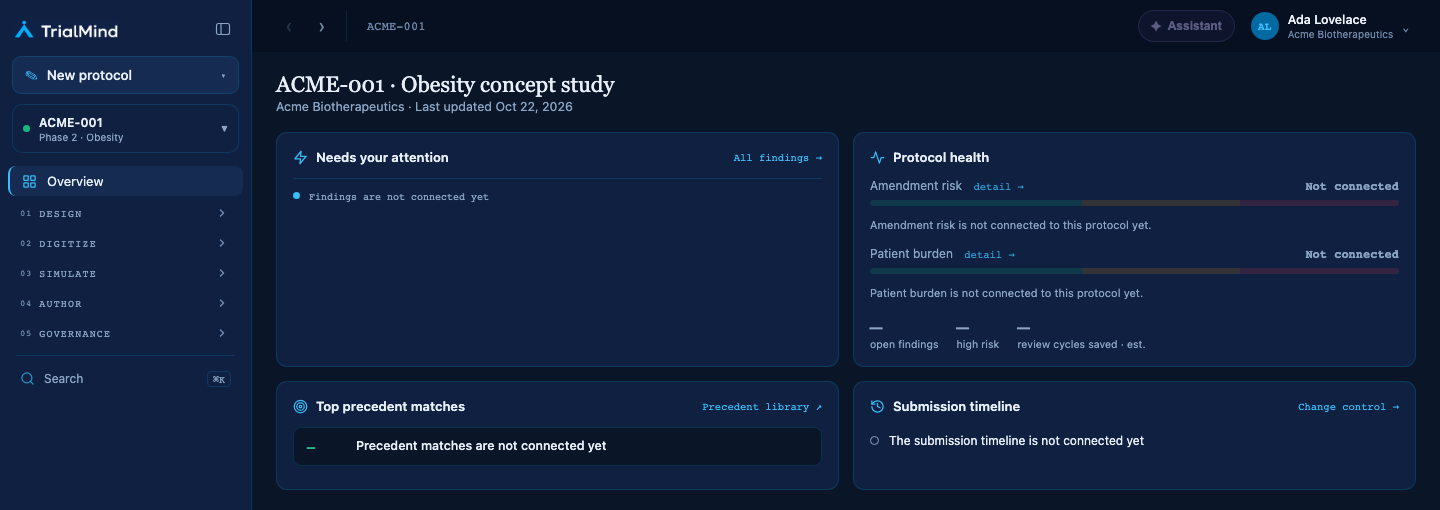
The Workspace Overview, shown with a synthetic example protocol.
- Needs your attention
- Protocol health
- Top precedent matches
- Submission timeline
These cards keep their place on the page, but TrialMind does not yet provide what they summarize. Each says Not connected, or shows a dash (—), instead of a value. Treat a dash as missing information, not as a result.
Start a new protocol from the Workspace
New protocol at the top of the left navigation starts the same wizard as on Home and in the Portfolio. See Start a New Protocol.
Actions that are not available yet
If you select an action that is not available, such as an export, search, or inviting a team member, TrialMind shows a short message such as "This action is not connected yet." Nothing is changed.